
DRAFT FOR REVIEW pink boxes = facts still needed before publishing
TinyScan TS402 User Guide
For TS402 software version 02.04.02 (build 4) and later. This guide covers the handheld scan tool, its screen and buttons, and the web pages you can open on a phone or tablet.
1. What the TS402 does
The TS402 is a pocket-size scan tool for small-engine electronic fuel injection (EFI) controllers, the engine's computer, called the ECU. It's built for mowers, generators, pumps, utility vehicles and similar equipment. It is not a car OBD-II scanner.
With it you can:
- find the engine's ECU automatically, on either of the two connection types small engines use: K-line and CAN;
- read the stored trouble codes (also called DTCs, diagnostic trouble codes) and clear them after a repair;
- watch live data, such as RPM, temperatures, battery voltage and throttle;
- read the ECU's identification;
- use a phone, tablet or laptop over the TS402's own Wi-Fi for bigger screens: gauges, graphs, data capture and more;
- update its own software from the TinyScan server, but only when you say Yes.
2. Getting started and power
In the box
The TS402 unit, the engine interface cable and a carrying case. Confirm the kit contents and the cable part number(s)
Power
The TS402 runs on 5 V USB-C power. Confirm how a customer powers it in the field: a USB-C supply or power bank, the engine cable, or both
Turning it on
- Connect power. The screen shows the TinyScan logo while it starts.
- Next, a NETWORK INFO screen shows the Wi-Fi mode and address for about 10 seconds. Press ENTER or ESC to skip it.
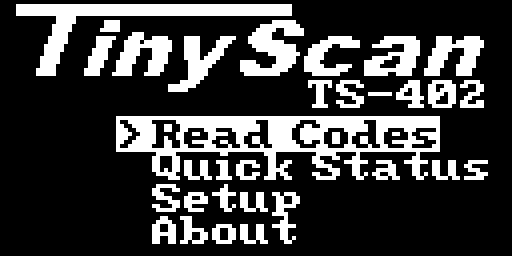
- The Main Menu appears. The unit is ready.
From power-on to the main menu takes up to about a minute.
Turning it off
When you're finished, back out to the Main Menu and disconnect power. The TS402's main software is stored read-only, which protects it from damage when power is removed.
To confirm: Is it OK to tell customers that unplugging at the Main Menu is the normal way to turn the TS402 off? The shop plug-pull test is still to be done.
3. The buttons
| Button | What it does |
|---|---|
| UP DOWN | Move the > pointer through a menu, scroll through codes and pages, and switch between NO and YES on a question screen. |
| ENTER | Choose the highlighted item, or confirm. |
| ESC | Go back one screen, or cancel. |
| DTC | Shortcut: read trouble codes now, from any screen. If the TS402 isn't connected yet, it finds the engine first and then reads the codes. |
| I/M | Shortcut: switch between Imperial (°F, PSI) and Metric (°C, kPa). A banner at the top of the screen confirms the change. |
| LEFT RIGHT | Not used yet. A coming update will let RIGHT pick YES and LEFT pick NO on question screens. For now, use UP/DOWN. |
Most screens show their own key hints on the bottom line, for example ENTER=Retry ESC=Back.
To confirm: the exact key labels printed on the production keypad (this guide uses UP, DOWN, LEFT, RIGHT, ENTER, ESC, DTC and I/M, the names in the software).
4. The menus
| Menu | Items |
|---|---|
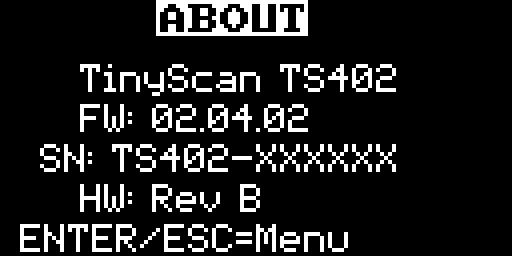
| Main Menu | Read Codes: find the engine and open the Engine menu Quick Status: a short summary screen (RPM, coolant and speed show --- for now; it doesn't show live values yet)Setup: settings and software update About: model, software version (FW), serial number (SN) and hardware revision |
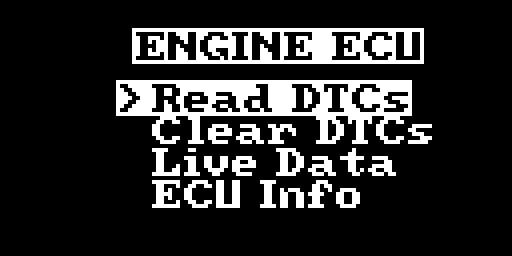
| Engine menu (after connecting) | Read DTCs · Clear DTCs · Live Data · ECU Info |
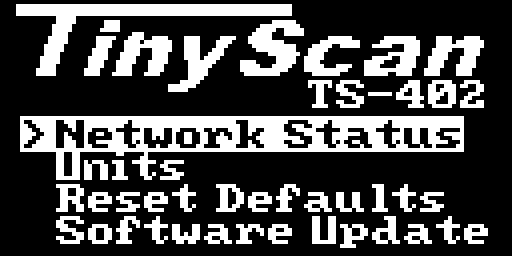
| Setup | Network Status · Units · Reset Defaults · Software Update |
5. Connecting to an engine
The TS402 talks to two kinds of engine computers, and it figures out which one you have by itself:
- K-line: a single-wire connection used by many small-engine EFI systems, including the Delphi MT05 ECU.
- CAN: a two-wire network (J1939) used by newer engines.
- With the key OFF, plug the TS402 cable into the engine's diagnostic connector. Push it in all the way. Add a photo or drawing of the connector and where to find it on common engines
- Turn the ignition key ON. The engine can be stopped or running.
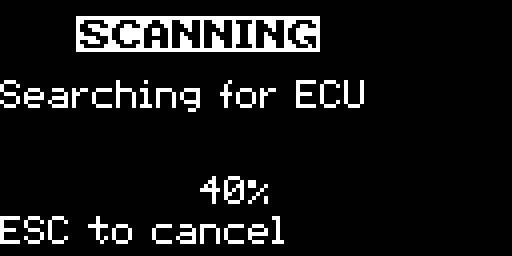
- On the TS402, choose Read Codes from the Main Menu and press ENTER.
- The SCANNING screen counts up to 100 % while it searches, for up to 30 seconds. Press ESC to cancel.
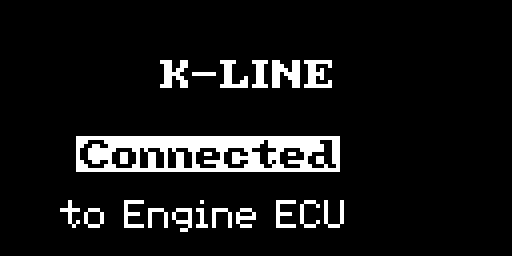
- When it finds the ECU, it shows K-LINE or CAN, then Connected to Engine ECU. After about 3 seconds, the Engine menu opens.
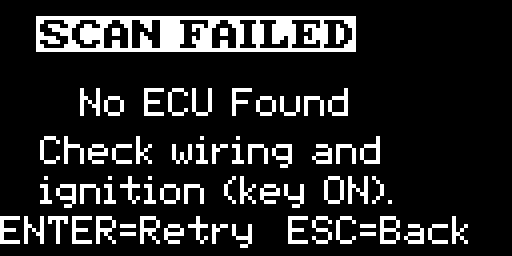
If nothing answers within 30 seconds, you'll see SCAN FAILED · No ECU Found. Check the cable and that the key is ON, then press ENTER to try again or ESC to go back.
If the connection drops
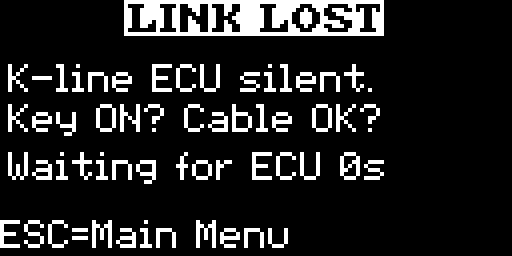
If the engine stops answering while you're connected, for example because the key was turned off or the cable was bumped, the screen shows LINK LOST and counts the seconds. Fix the cause and the TS402 picks up where it left off by itself. Press ESC to give up and return to the Main Menu.
6. Reading trouble codes
- Connect to the engine (section 5), then choose Read DTCs. Or press DTC at any time.
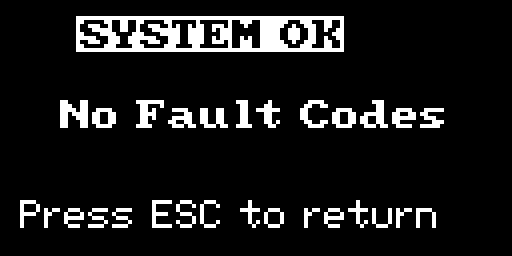
- If there are no codes, you'll see SYSTEM OK · No Fault Codes.
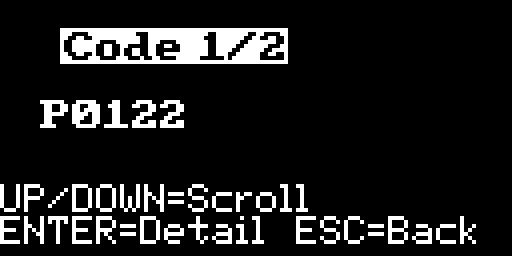
- If there are codes, the screen says how many it found, then shows them one at a time: Code 1/2 and so on. Use UP/DOWN to move between codes.
- Press ENTER on a code for its detail pages, and use UP/DOWN to page through them:
- page 1: the code (CAN codes also show their SPN and FMI numbers);
- page 2: description (not built in yet; look the code up in the engine maker's service manual);
- page 3: occurrence count.
- Press ESC to go back.
Tip: Write the codes down, or take a photo of the screen, before you clear them.
7. Clearing trouble codes
Clear the codes after the problem has been repaired. Clearing erases the stored codes in the engine's ECU.
- Key ON, engine stopped, TS402 connected.
- Choose Clear DTCs from the Engine menu.
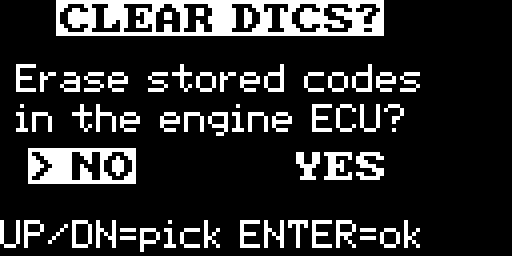
- The screen asks CLEAR DTCS? Erase stored codes in the engine ECU? NO is selected first, so nothing happens by accident.
- Press UP or DOWN to move to YES, then press ENTER.
- The screen shows CLEARING FAULT CODES… Please wait… The TS402 then reads the codes again to make sure.
| Result on screen | What it means |
|---|---|
| SUCCESS! Codes cleared "Verified: re-read shows no codes." | Done. The ECU confirms there are no codes left. |
| FAILED! Not cleared "ECU refused" / "Engine off, key ON?" | The ECU said no. Stop the engine, leave the key ON and try again. |
| FAILED! "ECU still has N codes" / "Fault may be active" | The fault is still there, so the ECU set the code again right away. Repair the cause first. |
| FAILED! "No reply from ECU" / "Check key ON/cable" | Check the key and the cable. |
8. Live data and ECU info
Live Data
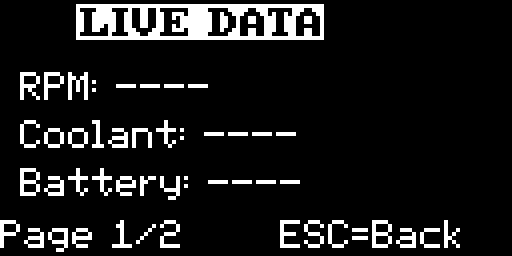
Choose Live Data from the Engine menu. The screen refreshes about four times a second. Use UP/DOWN to change pages, and ESC to go back.
| Engine type | Page 1 | Page 2 | Page 3 |
|---|---|---|---|
| K-line | RPM, Coolant, Battery | Intake, MAP, Throttle | – |
| CAN | RPM, Oil Temp, Fuel Rate | Battery, Intake, Baro | Throttle |
A value shows ---- when the ECU doesn't send it. If an ECU can't send live data at all, the screen says Live data is not supported by this K-line ECU. Press I/M to switch units.
ECU Info
Choose ECU Info to read the ECU's identification, such as its part and software numbers. It takes a moment (Reading ECU… please wait). There are 4 pages; use UP/DOWN. Anything the ECU doesn't report shows as not supported.
For many more parameters, gauges and graphs, use the web pages (section 9).
9. Wi-Fi and the web pages
The TS402 makes its own Wi-Fi network (a "hotspot"), so you can use a phone, tablet or laptop as a big screen. No internet is needed for this.
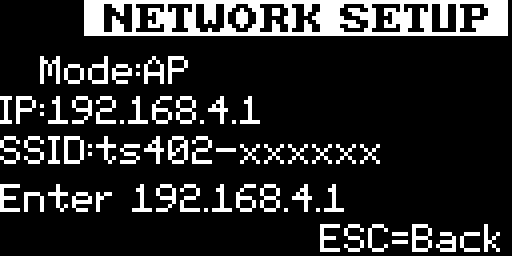
- On the TS402, open Setup → Network Status. It should say Mode:AP. AP is hotspot mode. The SSID line shows the network name, which looks like
ts402-xxxxxxand matches the serial number on the About screen. - On your phone or tablet, open Wi-Fi settings and join that network.
- Open a web browser and go to
http://192.168.4.1. Typehttp://, nothttps://.
To confirm: Will shipped units' hotspot be open, or will it have a password printed on a label? This guide doesn't mention a password.
What's on the web pages
| Page | What you can do |
|---|---|
| Settings | Pick your engine: Manufacturer, then Series, then Model. This opens the matching K-line or CAN pages. |
| Engine pages | Device Trouble Codes (read and clear) · Parameters (all live values in a table) · Gauges · Graphs · Capture Data · Live Stream |
| Connections | See the network details, add a Wi-Fi network (name and password) so the TS402 can reach the internet, or switch back to hotspot mode. |
| About | Unit name, model, software version and build date, the Technical Manual, and the Check For Update button (section 11). |
The web pages and the TS402 screen work at the same time.
10. Setup: network, units, reset
Network Status
Shows the Wi-Fi mode, address (IP) and network name. Each press of ENTER switches to the next mode: AP (hotspot) → Client (joins your shop Wi-Fi) → Off → AP again. In AP mode the hint line reads Enter 192.168.4.1, the address to type in your browser. Pressing ENTER in AP mode still switches to Client and turns the hotspot off.
- AP (hotspot): for the web pages, no internet. Address
192.168.4.1. - Client: the TS402 joins a Wi-Fi network you saved before on the Connections web page. The screen shows the address your network gave it. Software updates need this mode, because they need the internet.
- Off: Wi-Fi turned off.
192.168.4.1 won't open. To get the hotspot back, go to Setup → Network Status and press ENTER until it says AP.To confirm: the exact customer steps for saving a shop Wi-Fi network: the Connections page, the Android app, or both.
Units
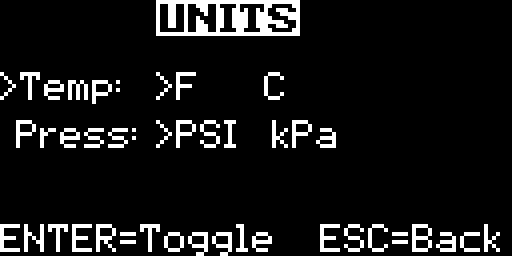
Choose temperature (°F or °C) and pressure (PSI or kPa). Use UP/DOWN to pick the row, ENTER to switch it, and ESC to go back. The I/M button switches Imperial/Metric from any screen. Unit choices go back to °F/PSI when the TS402 restarts.
Reset Defaults
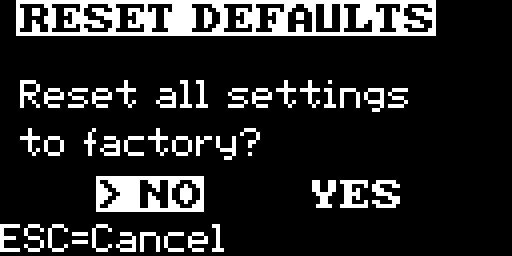
Asks Reset all settings to factory? with NO selected. Use UP/DOWN and ENTER. Today this puts the display units back to °F and PSI.
11. Software update
The TS402 can download new software from the TinyScan update server. It never updates by itself: it only checks when you ask, and it only installs if you choose YES.
What you need
- The TS402 connected to a Wi-Fi network with internet (Client mode; see section 10).
- Steady power for about 2 minutes. A typical update takes about 1½ minutes.
- Don't use the TS402 on an engine during the update.
Step by step, on the TS402 screen
- Main Menu → Setup → Software Update → ENTER.
- The screen says Checking for updates… (ESC cancels).
- If there's new software you'll see UPDATE AVAILABLE, the New and Now versions and the download size, and Install? with NO selected.
- Press UP or DOWN to move to YES, then press ENTER. (LEFT/RIGHT don't work here yet.) To skip the update, leave it on NO and press ENTER, or press ESC.
- The screen shows UPDATING with each step: Downloading and Verifying (with a progress bar), then Unpacking, Restarting and Testing. The buttons don't respond during the update. This is normal.
- The screen goes blank and restarts once. This is normal, and the update continues. It then shows UPDATING · Testing….
- When it's finished: UPDATE DONE · Installed: 02.04.xx · Software is up to date. Press ESC to return to Setup.
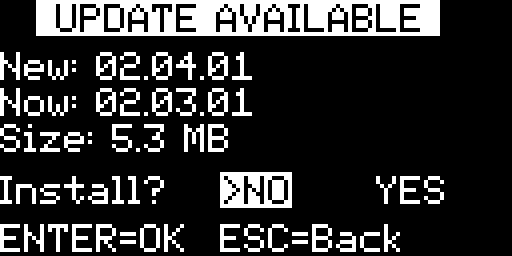
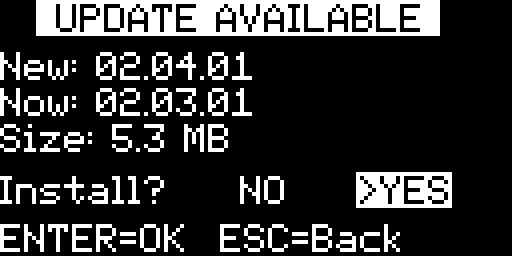
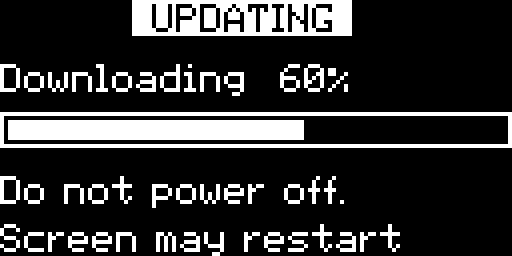
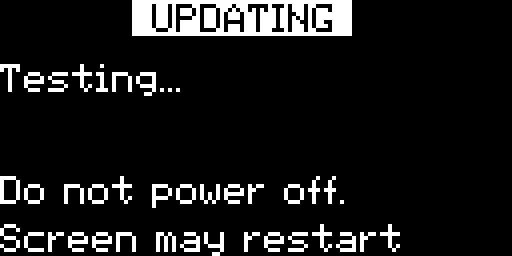
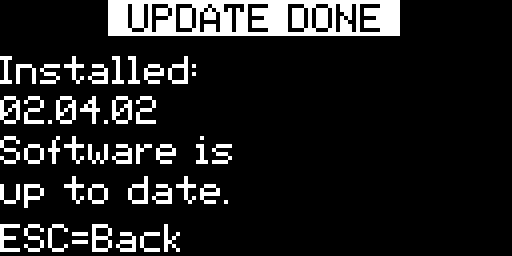
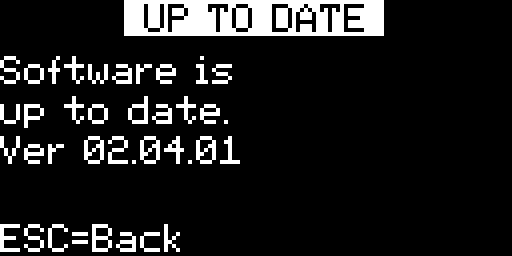
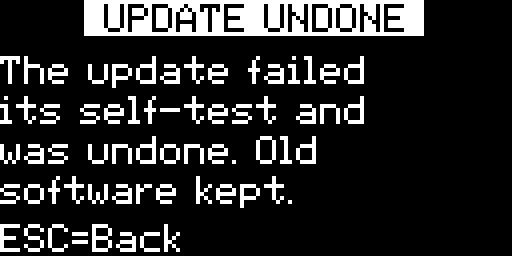
Screen pictures come from the TS402 software running in a simulator. Version numbers are examples.
Other messages you might see
| Screen | What it means / what to do |
|---|---|
| UP TO DATE "Software is up to date." | You already have the newest software. Press ESC. |
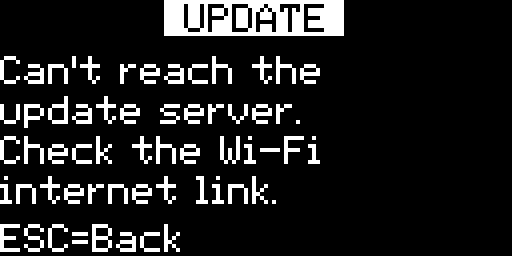
| UPDATE "Can't reach the update server. Check the Wi-Fi internet link." | The TS402 isn't on the internet. Put it in Client mode on a network with internet, then try again. |
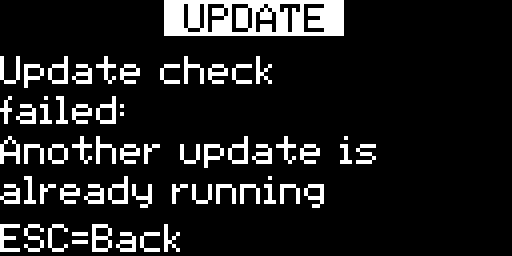
| UPDATE "Update check failed: Another update is already running" | An update is still finishing. Wait a minute, press ESC, and open Software Update again. |
| UPDATE UNDONE "The update failed its self-test and was undone. Old software kept." | The safety check worked, and your TS402 is on its previous software and works normally. TinyScan won't offer that same update again. Contact support if you like. |
| NOT INSTALLED "Nothing changed." | The download or the check stopped (for example, the Wi-Fi dropped). Nothing was changed, so try again later. |
Message screens stay up until you press ESC or ENTER.
Updating from the web page instead
Open the About web page and press Check For Update. If an update is offered, press Yes, install, or No to skip it. The page shows the progress. It loses its connection for a moment while the TS402 restarts its programs, then reconnects and shows Update installed.
12. Troubleshooting
| Problem | Try this |
|---|---|
| SCAN FAILED · No ECU Found | Key ON? Cable pushed all the way in at both ends? Check the engine fuse and battery. Press ENTER to retry. |
| LINK LOST | Key turned off, or the cable moved. Fix it and the TS402 reconnects by itself, or press ESC. |
| COMM ERROR "Unsupported protocol or ECU." | This engine's ECU isn't supported. Press ENTER for the menu. |
Live values show ---- | The ECU isn't sending that value, or the link just dropped. Check that the key is ON. |
| Clear codes failed | See the table in section 7. Usually the engine is running, or the fault is still present. |
| Can't find the TS402 Wi-Fi | Setup → Network Status must say Mode:AP. If it says Client or Off, press ENTER until it says AP, wait a moment, then look for the network again. |
| Browser won't open 192.168.4.1 | Make sure your phone is joined to the TS402 network, not your shop Wi-Fi. Some phones switch back to mobile data when a network has no internet, so turn mobile data off for a moment. Type http://192.168.4.1. |
| Software update: "Can't reach the update server" | The TS402 must be in Client mode on a network with internet (section 10). |
| Screen stuck on a message | Message screens wait for you. Press ESC or ENTER. |
| Screen blank or not responding (not during an update) | Disconnect power, wait 10 seconds, and reconnect. |
13. Specifications and support
| Item | TS402 |
|---|---|
| Engine connections | K-line (ISO 14230 / KWP2000, 10,400 baud), including the Delphi MT05 ECU; CAN (SAE J1939, 250/500 kbit/s) |
| Display | 128 × 64 monochrome LCD |
| Wi-Fi | Built-in hotspot (192.168.4.1) or joins your network; Bluetooth LE for setup |
| Power | 5 V USB-C, about 400 mA typical |
| Computer | Raspberry Pi Zero 2 W |
| Software updates | Signed updates you approve, with automatic rollback |
Support and warranty, needed from Timothy: support phone and email, website, warranty terms, and the list of supported engine makes and models for customers. The TS402's own Settings web page currently says "Design Technology, Inc. · Home of the Tiny Tach · www.tinytach.com · 630-920-1300". Confirm that's the support contact to print here.